Connect ChatGPT
Add Solved Tax & Legal in ChatGPT, sign in and ask your first question.
Before you start
You need:
A Solved account with at least one area of law. New to Solved? Start a free trial: 14 days free, cancel anytime. If your team already uses Solved, sign in and choose your areas.
A ChatGPT account on Plus or Pro, or in a Business, Enterprise or Edu workspace.
Connect ChatGPT
Open Solved in ChatGPT
ChatGPT’s plugin directory opens at Solved Tax & Legal. Select Connect.
Sign in to Solved
Sign in with your Solved account.
Allow the connection
Solved shows which account ChatGPT will use. If it isn’t the one you want, select Use a different account first. Then select Connect. ChatGPT opens again and shows Solved Tax & Legal as connected.
Try your first question
Start a new conversation and paste this question.
Use Solved to find the HMRC manual section about group relief. Open the section and give me its title, reference and source link.
With ChatGPT's default permission, it searches and reads Solved without asking first. It asks before it sends feedback to Solved.
Check it worked
- You can see that ChatGPT used Solved while answering.
- The answer includes a link to the source it read.
- The link opens that section in Solved.
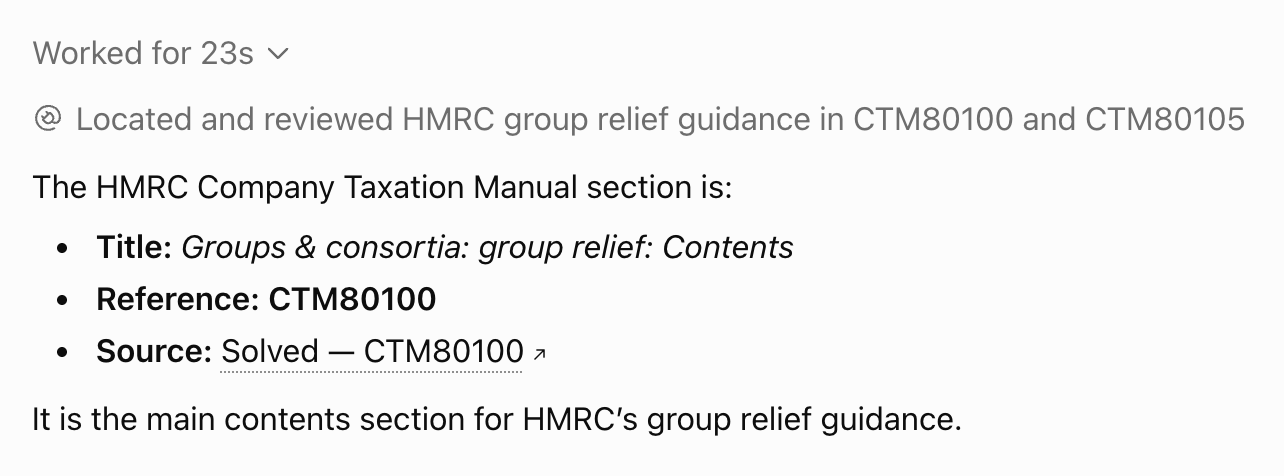
If the answer has no source link, ChatGPT probably answered from its own knowledge. Check that Solved is connected, then ask again and mention Solved in your question.
For admins
Solved Tax & Legal is listed in ChatGPT, so there is nothing to register or configure. A workspace owner or admin turns Solved on for your workspace once.
Open Apps in workspace settings
In ChatGPT, go to Workspace settings › Apps. You need the Owner or Admin role.
Enable Solved
On the Directory tab, find Solved Tax & Legal and select Enable. On Business workspaces, apps are often on already.
Tell your team
Everyone then follows Connect ChatGPT above and signs in with their own Solved account.
Having trouble?
Solved hasn’t been turned on for your organisation yet. Send your admin the steps for admins.
Select Plugins in the sidebar, then Solved, and check your Solved account is listed under Connected accounts. Then ask again and mention Solved in your question.
Go to Settings → Plugins, select Solved and set Permission to Allow low-risk tools. Searching and reading sources then run without asking. Sending feedback to Solved still asks first.
Select Plugins in the sidebar, then Solved. Open the ⋯ menu next to your account and choose Disconnect.
If Solved shows No agent access yet after you sign in, the account you signed in with has no areas of law yet.
Select Continue on Solved to start a free trial, or to choose your areas if your team already uses Solved, then connect again. If you meant to use another account, select Sign in with a different account.
ChatGPT’s menus can change. See OpenAI’s guide to apps in ChatGPT for the latest steps.